TUI guide
How to use the Terminal User Interface for discovery, configuration, and command generation.
The Terminal User Interface (TUI) is an interactive, text-based dashboard for your terminal. It is the easiest way to browse the model and benchmark catalogs, check readiness, and generate CLI commands without memorizing flags.
Launch the TUI
Before launching, ensure the WorldFoundry package is installed. First-time CUDA setup uses the same official bootstrap as the Quickstart:
bash scripts/setup/bootstrap_worldfoundry.sh
source tmp/worldfoundry_unified_env.sh
conda activate "${WORLDFOUNDRY_UNIFIED_ENV_PREFIX}"
If you manage your own conda environment, install the package with the [tui] extra from the repo root:
python -m pip install -e ".[tui]"Once your environment is active, launch the TUI:
worldfoundry-eval tuiThe TUI reads the same model-zoo and benchmark-zoo manifests as the CLI discovery commands. It does not bypass manifest readiness, runtime profiles, or runner validation.
Launch options
Flag
--catalog-jsonPrint the catalog payload used by the TUI and exit.
--model-id openvlaPre-select a model and skip the model picker.
--benchmark-id liberoPre-select a benchmark and skip the benchmark picker.
--print-commandPrint the generated
runcommand to stdout and exit, without entering the interactive session.
Example — generate a command for a specific model × benchmark pair and exit:
worldfoundry-eval tui --model-id openvla --benchmark-id libero --print-commandThis is useful in scripts or CI pipelines where you need the canonical command without manual interaction.
Navigate the TUI
The TUI is a four-pane dashboard. The left column shows the OpenEnvision branding, active conda environment, and a searchable Catalogs table. The right column shows the current mode overview, action toolbar, parameter form, and Execution Log.
Switch Mode in the top-left panel to move between Inference, Studio, and Evaluation. Each mode reuses the same catalog data but exposes different controls and command output.
Inference
Use Inference to pick a model, fill model-specific inputs, and generate a runnable worldfoundry-eval run command. The toolbar provides Run, Stop, Copy, Cmd, Check, Files, GPU, and Sync. Everyday reproducible / model-page commands stay on worldfoundry-eval run; Workspace visual smoke uses python -m worldfoundry.studio.workspace_job infer. See CLI entrypoints.
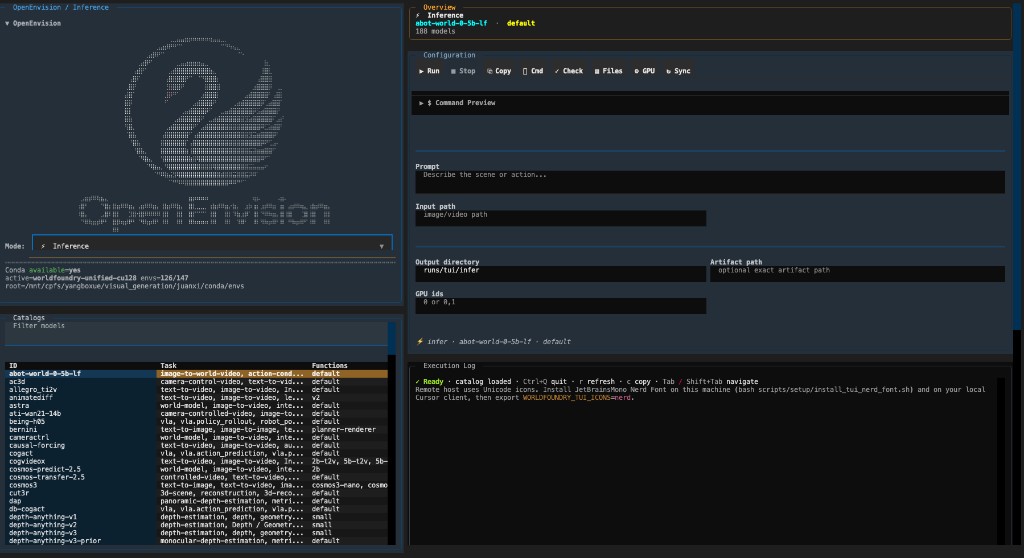
Typical fields include prompt, input path, output directory, optional artifact path, and GPU IDs. The Command Preview section updates as you edit parameters.
Studio
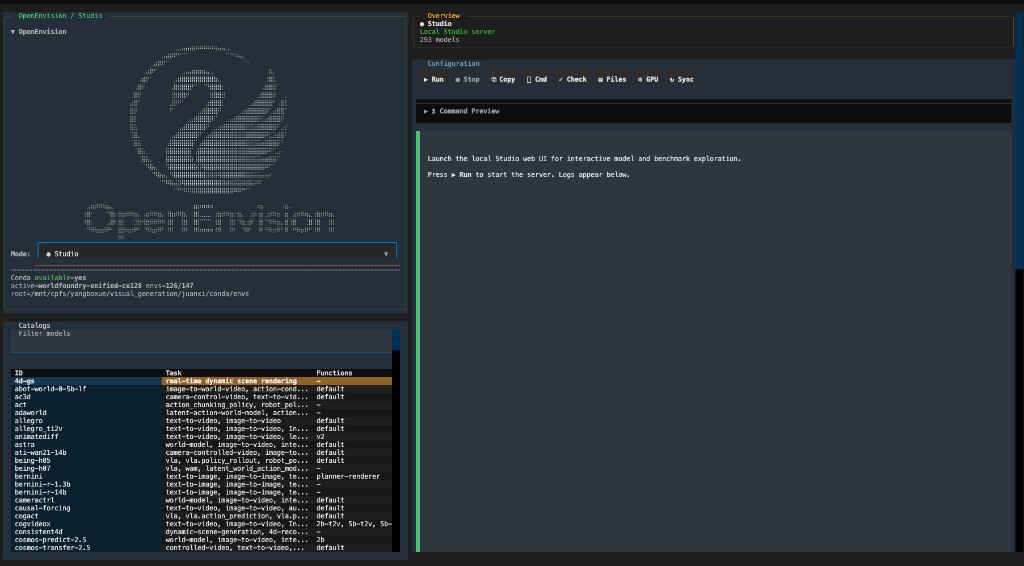
Use Studio to launch the local Studio web UI from the terminal. Press Run to start the server; status and logs appear in the execution log.
Evaluation
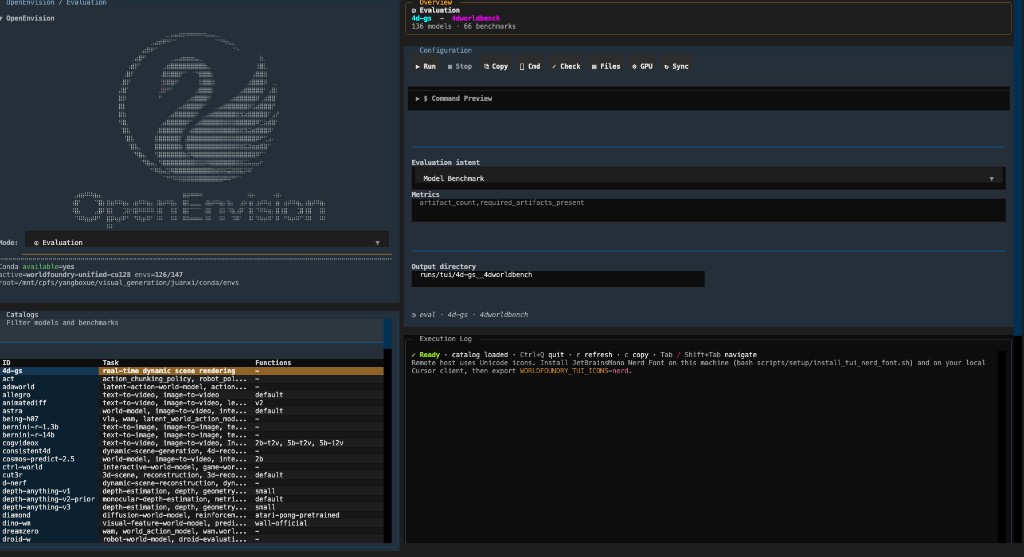
Use Evaluation to configure benchmark runs. Choose an evaluation intent, select metrics, and set the output directory. The TUI builds the corresponding worldfoundry-eval command for the selected model × benchmark pair.
The main navigation shortcuts also work while a text field has focus:
Shortcut
- Ctrl+F
Focus catalog search
- F2
Focus the visible model or benchmark catalog
- F3
Focus configuration tabs; use arrow keys to switch tabs
- F4
Reveal and focus the execution log
- Ctrl+RCtrl+S
Run / stop the configured command
- Ctrl+D
Switch between WorldFoundry's matching light and dark themes
- Ctrl+Q
Quit
- TabShift+Tab
Move between controls
- Enter
Select the highlighted catalog row
Outside text fields, r refreshes the catalog, c copies the command, p checks paths and the environment, g shows GPU status, and a lists output files. Toolbar tooltips also describe these actions. Catalog refresh and GPU status queries run in the background so navigation remains available. GPU queries time out after 10 seconds and report failures in the execution log.
The official OpenEnvision logo keeps its original renderer and proportions. Small terminals hide the logo and stack the workspace vertically; use F2, F3, and F4 to move between sections. Search and table headers stay visible while browsing rows. Resizing, switching themes, and refreshing catalogs preserve the row you are browsing; press Enter to use it. Filtering preserves the configured model, and the overview identifies a selection outside the current filter. Switching modes preserves each mode's model selection and any edited output directory.
Unicode icons are the default. If your terminal uses a Nerd Font, opt in with WORLDFOUNDRY_TUI_ICONS=nerd; use WORLDFOUNDRY_TUI_ICONS=ascii for plain button and navigation labels.
Configuration
Evaluation mode exposes two focused intents:
- Model Benchmark — Select a model and benchmark; the TUI builds the end-to-end generation plus official benchmark command.
- Score Artifact Directory — Select a benchmark and an existing artifact directory; model selection and metric subsets are hidden because the benchmark's complete protocol is used.
Inference mode presents model-specific parameters such as:
- Steps / iterations — Number of denoising or sampling steps.
- Guidance scale / cfg — Classifier-free guidance strength.
- Sequence length — Maximum token or frame count.
- Seed — Deterministic generation seed (optional).
Changing a parameter in the TUI updates the generated command in real time. If a required value is missing or invalid, an explanation appears below the toolbar and Run and Copy remain disabled until the command can be built. Use the Workspace or generate-score CLI when a custom dataset manifest needs more fields than the compact TUI exposes.
Readiness indicators
The TUI surfaces readiness warnings alongside catalog entries:
- Missing checkpoint — The model requires a checkpoint that is not found at the declared path.
- Missing dataset — The benchmark requires a dataset that is not staged locally.
- Missing environment — The runtime profile declares conda packages or CUDA versions that are not satisfied.
- License gate — The model or dataset has a gated or non-commercial license that requires manual review.
When a readiness blocker is present, the generated command includes --mode official-validation by default. This ensures you can validate the wiring without committing GPU resources to a blocked run.
Fallback mode
If the Textual dependency is not installed, the TUI prints a static fallback summary instead of the interactive dashboard. The fallback lists model IDs, benchmark IDs, and a brief readiness note.
To restore the full interactive TUI, install the [tui] extra:
python -m pip install -e ".[tui]"